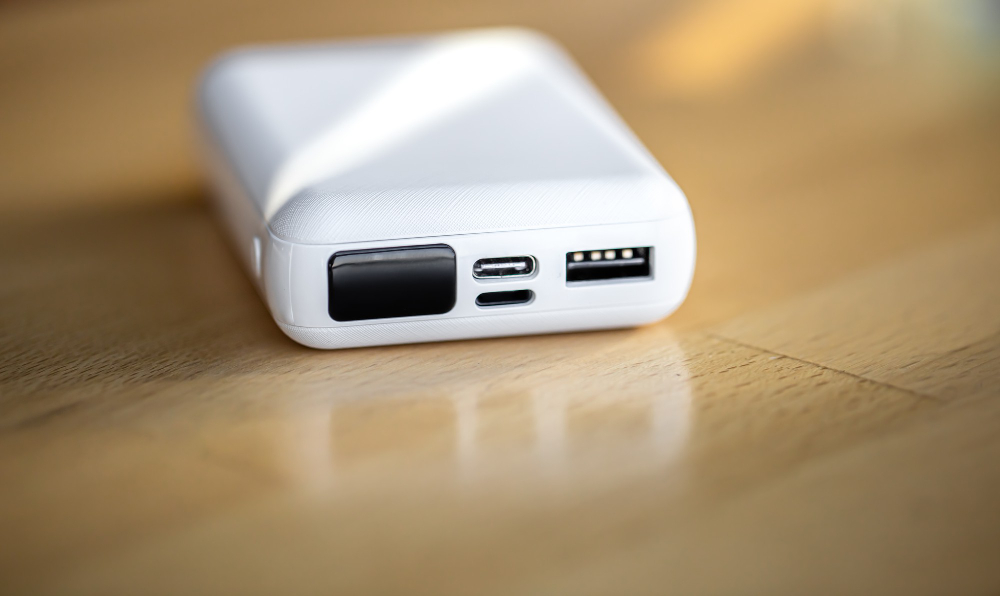
Portable and powerful — port hub boosts connectivity on the go.
Modern laptops are thinner, lighter, and more powerful than ever—but that sleek design comes at a cost. Whether you’re using a MacBook, Dell XPS, or any other ultraportable, you’ve probably noticed the same problem: not enough ports .
You need to connect an external monitor, charge your phone, plug in a USB drive, and maybe even use Ethernet for stable internet. Suddenly, your “perfect” laptop becomes frustratingly limited.
That’s where USB-C hubs and docking stations come in. The right hub transforms a single USB-C port into a complete workstation. But with so many options in 2026, how do you choose?
I’ve researched the latest models, analyzed expert reviews, and tested real-world performance to bring you this guide. Whether you’re a programmer needing dual monitors, a creator transferring large files, or a student on a budget, here are the best USB-C hubs and docking stations for laptops in 2026.
Disclosure: As an Amazon Associate, I earn from qualifying purchases. Some links below are affiliate links that help support this site at no extra cost to you.
The Best USB-C Hubs & Docking Stations of 2026 – Reviewed
1. Best Overall: Anker 575 USB-C Hub (13-in-1)
The perfect balance of ports, performance, and price
If you need one hub that does it all—at home, in the office, or on the road—the Anker 575 is our top pick. With 13 ports and triple-monitor support, it handles everything most users need .
- Ports: 2 HDMI, DisplayPort, 3 USB-A, 2 USB-C, Ethernet, SD/microSD, AUX
- Power Delivery: 85W laptop charging + 18W for devices
- Video Output: Triple display support (even on M1/M2 MacBooks!)
- Data Speed: USB 3.2 Gen 1 (5 Gbps)
- Special Feature: Includes 135W power brick for reliable performance
Why it’s great for programmers: The triple-monitor support is a game-changer. Even if you’re using an M1/M2 MacBook (which natively supports only one external display), this hub’s DisplayLink technology lets you run three screens . Perfect for keeping code on one monitor, documentation on another, and terminals on the third.
Watch out for: Requires DisplayLink driver installation on Macs; slightly bulky for travel.
Best for: Programmers, creators, and anyone needing maximum screen real estate.
👉 Check price of Anker 575 on Amazon (affiliate link)
2. Best for Power Users: Plugable USBC-9IN1E
140W charging for demanding laptops
If you’re using a power-hungry machine like the 16-inch MacBook Pro, standard hubs may not keep up—your battery slowly drains even while plugged in. The Plugable USBC-9IN1E solves this with 140W USB-C Power Delivery 3.1 support .
- Ports: HDMI, 2 USB-A (10Gbps), USB-C (10Gbps), Ethernet, SD/microSD
- Power Delivery: Up to 125W to laptop (with 140W+ charger)
- Video Output: 4K @ 60Hz
- Data Speed: 10 Gbps on high-speed ports
- Special Feature: 2.5G Ethernet for faster wired networking
Why it’s great for programmers: The 125W power delivery means your laptop stays fully charged even during heavy compilation, rendering, or running multiple VMs . The 2.5G Ethernet is future-proof for office networks.
Watch out for: Requires a 140W charger (sold separately) to achieve full speed.
Best for: MacBook Pro 16″ users, developers with heavy workloads.
👉 Check price of Plugable USBC-9IN1E on Amazon (affiliate link)
3. Ultimate Thunderbolt Dock: Caldigit TS4
The dock by which all others are judged
The Caldigit TS4 is legendary among professionals for a reason—it’s the most feature-packed Thunderbolt dock on the market. If money is no object and you want the absolute best, this is it.
- Ports: 18 total—Thunderbolt, DisplayPort, HDMI, 5 USB-C, 5 USB-A, Ethernet, audio, SD/microSD
- Power Delivery: 98W
- Video Output: Dual 6K or single 8K, up to four displays
- Data Speed: Thunderbolt 4 (40 Gbps)
- Special Feature: Front-mounted ports for easy access, Kensington lock slot
Why it’s great for programmers: With 18 ports, you can literally connect everything you own and never need another dongle. The build quality is exceptional—it feels like it will outlast your laptop by a decade. For developers running multiple high-resolution monitors, the video support is unmatched.
Watch out for: Very expensive; overkill for most users.
Best for: Professional developers, video editors, and anyone who wants zero compromises.
👉 Check price of Caldigit TS4 on Amazon (affiliate link)
4. Best for Triple Monitors: Anker 563 USB-C Dock (10-in-1)
Affordable multi-display power
The Anker 563 is specifically designed for users who need multiple screens without breaking the bank. It’s one of the most affordable docks that supports triple displays on both Mac and Windows .
- Ports: 2 HDMI, DisplayPort, 2 USB-A, USB-C, Ethernet, AUX
- Power Delivery: 100W
- Video Output: Triple display support (with DisplayLink on Mac)
- Data Speed: USB 3.2 Gen 1 (5 Gbps)
- Special Feature: Compact layout with all essential ports
Why it’s great for programmers: At nearly half the price of competitors, you get true triple-monitor productivity. Whether you’re debugging on three screens or running extensive documentation, this dock delivers.
Watch out for: 5 Gbps data speed (slower than 10 Gbps options); DisplayLink driver required on Mac.
Best for: Budget-conscious multi-monitor users, students.
👉 Check price of Anker 563 on Amazon (affiliate link)
5. Best Budget: Anker 341 USB-C Hub (7-in-1)
All the essentials, none of the extras
If you just need basic port expansion without spending much, the Anker 341 is the perfect choice. It’s simple, reliable, and does exactly what it promises .
- Ports: HDMI, 2 USB-A, USB-C data, Ethernet, SD/microSD
- Power Delivery: 100W pass-through
- Video Output: 4K @ 30Hz
- Data Speed: USB 3.2 Gen 1 (5 Gbps)
- Special Feature: Compact, portable design
Why it’s great for programmers: For under $35, you get everything essential: HDMI for an external monitor, USB-A for keyboard/mouse, Ethernet for stable internet, and SD card slot. It’s perfect for students or developers just starting their home office setup.
Watch out for: 4K @ 30Hz only (60Hz is smoother for daily use).
Best for: Students, budget-conscious buyers, travel.
👉 Check price of Anker 341 on Amazon (affiliate link)
6. Best for Dual Monitors (Mac Users): UGREEN Revodok Pro 209
Solves Apple’s single-display limitation
Base model MacBooks with M1, M2, or M3 chips natively support only one external monitor. The UGREEN Revodok Pro 209 uses DisplayLink technology to enable dual monitors, making it essential for Mac users who need more screen space .
- Ports: 2 HDMI, 3 USB-A, USB-C, Ethernet
- Power Delivery: 85W
- Video Output: Dual 4K @ 60Hz
- Data Speed: USB 3.2 Gen 2 (10 Gbps)
- Special Feature: Compact enough for travel despite dual HDMI
Why it’s great for programmers: If you’re a Mac user frustrated by Apple’s display limits, this is your solution. The dual 4K @ 60Hz output means both monitors are smooth and crisp—perfect for side-by-side coding.
Watch out for: Requires DisplayLink driver installation.
Best for: MacBook Air and MacBook Pro (base chip) users.
👉 Check price of UGREEN Revodok Pro 209 on Amazon (affiliate link)
7. Best Travel Hub: Plugable USBC-7IN1E
Compact, reliable, and Ethernet-equipped
When you’re working from coffee shops, co-working spaces, or hotel rooms, having a reliable hub is essential. The Plugable USBC-7IN1E packs 7 ports into a portable package, including Gigabit Ethernet—a lifesaver when Wi-Fi fails .
- Ports: HDMI, 2 USB-A, USB-C data, Ethernet, SD/microSD
- Power Delivery: 100W
- Video Output: 4K @ 60Hz
- Data Speed: 5 Gbps
- Special Feature: Gigabit Ethernet, compact design
Why it’s great for programmers: The Ethernet port ensures you never miss a critical video call or large download due to spotty Wi-Fi. It’s small enough to slip into any laptop bag pocket.
Watch out for: No USB-C data port on front (one on side).
Best for: Digital nomads, frequent travelers, remote workers.
👉 Check price of Plugable USBC-7IN1E on Amazon (affiliate link)
8. Best Monitor Stand Design: Anker 675 Docking Station
Elevate your screen and expand ports simultaneously
The Anker 675 is brilliantly innovative—it’s a monitor stand with a built-in 12-port docking station and wireless charging pad. It elevates your laptop or monitor to eye level while hiding all cable clutter underneath .
- Ports: HDMI, 3 USB-A, 2 USB-C, Ethernet, SD/microSD, AUX
- Power Delivery: 100W
- Video Output: 4K @ 60Hz
- Special Feature: Built-in Qi wireless charger, monitor stand design
- Build: Premium aluminum alloy
Why it’s great for programmers: This dock solves two problems at once: ergonomics and connectivity. By raising your monitor, it improves posture during long coding sessions. The wireless charging pad means your phone always stays topped up. And with all ports hidden underneath, your desk stays beautifully clean.
Watch out for: Fixed height (not adjustable); permanent desk setup only.
Best for: Programmers with dedicated home offices, desk organization enthusiasts.
👉 Check price of Anker 675 on Amazon (affiliate link)
9. Best Thunderbolt Value: Plugable TBT4-UDZ
Thunderbolt 4 performance at half the price
Thunderbolt docks are typically expensive, but the Plugable TBT4-UDZ delivers Thunderbolt 4 performance at a fraction of the Caldigit’s price. It’s the perfect middle ground for professionals who need speed but have a budget .
- Ports: Thunderbolt 4, HDMI, DisplayPort, 3 USB-A, USB-C, Ethernet, SD
- Power Delivery: 96W
- Video Output: Dual 4K @ 60Hz
- Data Speed: Thunderbolt 4 (40 Gbps)
- Special Feature: Compact Thunderbolt dock
Why it’s great for programmers: The 40 Gbps bandwidth means external SSDs perform at full speed—perfect for developers working with large codebases, databases, or VMs. Dual 4K @ 60Hz support is standard for modern monitors.
Watch out for: Fewer ports than premium Thunderbolt docks.
Best for: Thunderbolt users who need speed but not maximum port count.
👉 Check price of Plugable TBT4-UDZ on Amazon (affiliate link)
10. Best Compact Design: Anker Prime Charging Dock (14-in-1, 160W)
Vertical powerhouse with GaN technology
The Anker Prime Charging Dock takes a different approach—it’s a vertical dock with built-in GaN power, meaning no bulky external power brick. It packs 14 ports into a small footprint while delivering impressive charging power .
- Ports: 2 HDMI, 3 USB-C, 3 USB-A, Ethernet, SD/microSD, AUX
- Power Delivery: 160W total (100W per USB-C port)
- Video Output: Dual 4K @ 60Hz
- Data Speed: 10 Gbps
- Special Feature: Smart display shows charging status, vertical design saves desk space
Why it’s great for programmers: The smart display shows real-time power delivery—useful for monitoring charging speeds. The vertical design keeps your desk tidy, and with 160W total power, you can charge your laptop, phone, tablet, and more simultaneously without slowdown.
Watch out for: No Thunderbolt; limited to dual monitors.
Best for: Multi-device users, desk space savers, tech enthusiasts.
👉 Check price of Anker Prime Dock on Amazon (affiliate link)
Comparison Table: Specs at a Glance
| Model | Ports | Power Delivery | Video Output | Data Speed | Est. Price |
|---|---|---|---|---|---|
| Anker 575 | 13 | 85W + 18W | Triple 4K | 5 Gbps | $80-90 |
| Plugable USBC-9IN1E | 9 | 125W | 4K @ 60Hz | 10 Gbps | $70-80 |
| Caldigit TS4 | 18 | 98W | Quad 4K / 8K | 40 Gbps | $350-400 |
| Anker 563 | 10 | 100W | Triple 4K | 5 Gbps | $100-120 |
| Anker 341 | 7 | 100W | 4K @ 30Hz | 5 Gbps | $30-35 |
| UGREEN Revodok 209 | 9 | 85W | Dual 4K @ 60Hz | 10 Gbps | $60-70 |
| Plugable USBC-7IN1E | 7 | 100W | 4K @ 60Hz | 5 Gbps | $50-60 |
| Anker 675 | 12 | 100W | 4K @ 60Hz | 5 Gbps | $150-170 |
| Plugable TBT4-UDZ | Thunderbolt 4 | 96W | Dual 4K @ 60Hz | 40 Gbps | $150-180 |
| Anker Prime | 14 | 160W | Dual 4K @ 60Hz | 10 Gbps | $180-200 |
Hub vs. Dock: Which Do You Need?
| Choose a USB-C Hub if… | Choose a Docking Station if… |
|---|---|
| You travel frequently | You have a permanent desk |
| You need basic port expansion | You use multiple monitors daily |
| Budget is limited | You need maximum power delivery |
| Minimalism is priority | You want one-cable convenience |
Understanding Mac Display Limitations
If you use a Mac with an M1, M2, or M3 chip (base models, not Pro/Max), there’s an important limitation: only one external display is supported natively .
To use multiple monitors, you have two options:
- Buy a Mac with Pro/Max chip (expensive)
- Use a DisplayLink-enabled hub (affordable solution)
Hubs like the Anker 563, Anker 575, and UGREEN Revodok Pro 209 include DisplayLink technology, allowing multiple monitors even on base MacBooks . They require installing free DisplayLink drivers, but they work flawlessly.
Power Delivery: What the Numbers Really Mean
When a hub says “100W Power Delivery,” here’s the reality:
| Hub Rating | Delivered to Laptop | What It Can Charge |
|---|---|---|
| 60W | ~50W | MacBook Air, ultrabooks |
| 100W | ~85W | MacBook Pro 14″, most laptops |
| 140W | ~125W | MacBook Pro 16″, gaming laptops |
The hub itself consumes power to run its internal components. Always check real-world reviews to confirm actual delivery .
The Verdict: Which Hub Should You Buy?
- If you want the best all-rounder: Get the Anker 575. It handles triple monitors, charges your laptop, and has every port you need .
- If you have a power-hungry laptop: Get the Plugable USBC-9IN1E. The 140W support keeps even 16″ MacBooks charged .
- If you’re a Mac user needing dual monitors: Get the UGREEN Revodok Pro 209. It solves Apple’s single-display limit .
- If you’re on a tight budget: Get the Anker 341. It covers the basics for under $35 .
- If you travel constantly: Get the Plugable USBC-7IN1E. Ethernet port and compact size make it perfect for remote work .
- If money is no object: Get the Caldigit TS4. It’s the absolute best Thunderbolt dock available.
Frequently Asked Questions
USB-C hub vs docking station: what’s the difference?
A USB-C hub is typically compact, portable, and bus-powered (drawing power from your laptop). A docking station is larger, has more ports, includes its own power supply, and is designed for permanent desk setups .
Will a hub work with my MacBook?
Yes, most hubs work with MacBooks. However, check two things: (1) Power delivery—MacBooks need at least 60W for Pro models, and (2) Display support—base M1/M2/M3 Macs need DisplayLink for multiple monitors .
Can I charge my laptop through a hub?
Yes, if the hub supports Power Delivery (PD). Look for hubs with “Power Delivery” or “PD” in the specs, and ensure the wattage meets your laptop’s requirements .
Will a hub support dual monitors?
It depends on the hub and your laptop. Some hubs support dual displays natively; others require DisplayLink for Macs. Always check the specifications .
Thunderbolt 3 vs Thunderbolt 4 vs USB4: what’s the difference?
- Thunderbolt 3: 40 Gbps, single 4K or 5K display
- Thunderbolt 4: 40 Gbps, dual 4K displays, stricter requirements
- USB4: Based on Thunderbolt 3, up to 40 Gbps, varies by implementation
- Thunderbolt 5: 80-120 Gbps, 8K+ displays, new in 2026
Why does my hub get hot? Is that normal?
Yes, it’s normal. Hubs generate heat during use, especially with multiple devices connected. Aluminum-housed hubs dissipate heat better than plastic ones .
Can I use a hub with an iPad Pro?
Yes! Many USB-C hubs work with iPad Pro, allowing you to connect external displays, USB drives, and Ethernet. Some hubs like the Plugable UDS-7IN1 are specifically designed as iPad stands .
What’s the best hub for a 16-inch MacBook Pro?
The Plugable USBC-9IN1E with 140W support is ideal—it delivers enough power to keep your MacBook charged under heavy load.