
A developer using a dual-monitor setup to improve productivity while coding and analyzing data.
You’ve got the perfect laptop for coding—but if you’re staring at a single 13-inch screen for eight hours a day, your neck, eyes, and productivity are paying the price. For programmers, a great monitor isn’t a luxury; it’s a necessity.
The right display shows you more lines of code, reduces eye strain during long debugging sessions, and lets you keep documentation, terminals, and your IDE open side-by-side without constant tab-switching . But with hundreds of options on the market, how do you choose?
I’ve analyzed expert reviews, tested top models, and curated the best Monitors for programming in 2026. Whether you’re a full-stack developer, a data scientist, or a computer science student, this guide will help you find the perfect coding companion.
Here is the Jegec.com Tech Finder guide to the best programming monitors of 2026.
Quick Picks: Best Monitors for Programming
| Monitor | Best For | Size | Resolution | Key Feature | Est. Price |
|---|---|---|---|---|---|
| BenQ RD320UA | Overall Best for Coders | 31.5″ | 4K (3840×2160) | Coding modes, MoonHalo backlight | ~$700 |
| Dell UltraSharp U2725QE | Best 4K Productivity | 27″ | 4K (3840×2160) | IPS Black, 3000:1 contrast, Thunderbolt 4 | ~$750 |
| LG 34WN80C-B | Best Ultrawide | 34″ | WQHD (3440×1440) | 21:9 aspect ratio, USB-C 65W | ~$600-700 |
| Dell P2426D | Best Budget 24″ | 24″ | QHD (2560×1440) | Hardware calibration, 90W USB-C | ~$300-350 |
| BenQ RD280UG | Best Tall Display | 28.2″ | 4K (3840×2560) | 3:2 aspect ratio, 120Hz, 90W USB-C | ~$760 |
| ASUS ProArt PA278CV | Best Color Accuracy | 27″ | QHD (2560×1440) | Factory calibrated, 100% sRGB | ~$350 |
| Dell S2425H | Best Budget Dual Setup | 24″ | FHD (1920×1080) | Affordable, eye comfort, built-in speakers | ~$135 |
What to Look For in a Programming Monitor
Before diving into the reviews, let’s cover what actually matters for coding. A gaming monitor with RGB lighting won’t help you debug faster—but these features will.
1. Resolution: More Pixels = More Code
Higher resolution means you can fit more windows and more lines of code on screen without scrolling.
| Resolution | Pixel Count | Best For |
|---|---|---|
| FHD (1920×1080) | ~2 million | Budget setups, secondary monitors |
| QHD (2560×1440) | ~3.7 million | 24-27″ primary monitors, good balance |
| 4K (3840×2160) | ~8.3 million | 27-32″ monitors, maximum screen real estate |
| 5K (5120×2880) | ~14.7 million | Premium detail, Mac users |
For most programmers, 4K on a 27-32″ screen is the sweet spot—crisp text without requiring heavy scaling .
2. Screen Size and Aspect Ratio
- 24-27 inches: Standard choice, fits most desks, ideal for dual-monitor setups
- 32 inches: Maximum real estate, great for single-monitor setups
- Ultrawide (34″ 21:9): Perfect for side-by-side windows without bezels
- 3:2 Aspect Ratio: Taller screens show more lines of code—a game-changer for programmers
3. Panel Type: IPS is King for Coding
| Panel | Pros | Cons |
|---|---|---|
| IPS | Great colors, wide viewing angles | Moderate contrast |
| IPS Black | IPS benefits + deeper blacks (2000:1+ contrast) | Premium pricing |
| VA | High contrast, good for dark rooms | Viewing angles weaker than IPS |
| TN | Fast response, cheap | Poor colors, terrible angles—avoid for coding |
Stick with IPS or IPS Black for the best text clarity and viewing comfort .
4. Pixel Density: The “Eye Comfort” Factor
Pixel density (PPI) matters more than raw resolution. For programming, aim for 90-140 PPI—sharp text without requiring OS scaling that can cause blurriness .
| Size | Resolution | PPI | Verdict |
|---|---|---|---|
| 24″ | FHD (1080p) | ~92 | Good for budget, text is clear |
| 27″ | QHD (1440p) | ~109 | Excellent balance—our sweet spot |
| 27″ | 4K | ~163 | Very sharp—may need scaling |
| 32″ | 4K | ~138 | Ideal—sharp without heavy scaling |
5. Connectivity: USB-C with Power Delivery
Modern Laptops—especially MacBooks—work best with USB-C. Look for:
- USB-C with 65W+ power delivery (charges your laptop via one cable)
- KVM switch to control multiple computers with one keyboard/mouse
- Thunderbolt 4 for future-proofing
6. Eye Care Features
Programmers stare at screens for hours. Look for:
- Flicker-free technology
- Low blue light modes
- Ambient light sensors (auto-adjust brightness)
- Matte or anti-glare coating to reduce reflections
7. Refresh Rate: 60Hz is Fine
Unlike gamers, programmers don’t need 240Hz. 60Hz is perfectly adequate for coding . However, 75-120Hz can make scrolling through code feel smoother .
The Best Programming Monitors of 2026 – Reviewed
1. Best Overall for Coders: BenQ RD320UA

Built by programmers, for programmers
BenQ has created something special with the RD320UA—a monitor designed specifically for software developers, and it shows .
- Size: 31.5 inches
- Resolution: 4K UHD (3840 x 2160)
- Panel: Nano Matte IPS, 60Hz
- Connectivity: USB-C (with power delivery), HDMI, DisplayPort, built-in KVM switch
- Stand: Integrated Ergo Arm (full height/tilt/swivel/pivot)
Why it’s great for programmers: This monitor is packed with coding-specific features. The Nano Matte panel delivers glare-free clarity and remarkable text sharpness . Dedicated Coding Modes (Dark and Light themes) adjust the tone curve to make code pop and reduce eye strain during long sessions . The built-in MoonHalo backlight creates ambient lighting that reduces eye fatigue during night-time coding . And the integrated KVM switch lets you control two computers (work and personal) with one keyboard and mouse .
Watch out for: 60Hz refresh rate (fine for coding, not for gaming). The included USB-C cable is a bit short .
Best for: Professional developers who spend 8+ hours daily coding and want every possible comfort feature.
👉 Check the latest price of the BenQ RD320UA on Amazon (affiliate link)
2. Best 4K Productivity: Dell UltraSharp 27 4K Thunderbolt Hub Monitor – U2725QE

The king of connectivity and clarity
Dell’s UltraSharp line has long been a favorite among professionals, and the 2026 U2725QE raises the bar with IPS Black technology and Thunderbolt 4.
- Size: 27 inches
- Resolution: 4K UHD (3840 x 2160)
- Panel: IPS Black, 60Hz
- Contrast Ratio: 3000:1
- Connectivity: Thunderbolt 4, USB-C, HDMI, DisplayPort, RJ45 Ethernet
Why it’s great for programmers: The IPS Black panel delivers deeper blacks and higher contrast than standard IPS—making text stand out sharply . Thunderbolt 4 provides one-cable connectivity for your laptop, with 90W charging and daisy-chaining capability. The hub functionality means you can connect peripherals directly to the monitor, keeping your desk clean . It’s TUV-certified for 5-star eye comfort.
Watch out for: Premium pricing; 60Hz refresh rate.
Best for: Mac users, professionals who value connectivity, and anyone wanting future-proof Thunderbolt 4.
👉 Check the latest price of the Dell UltraSharp U2725QE on Amazon (affiliate link)
3. Best Ultrawide: LG 34WN80C-B

The multitasker’s dream
If you hate bezels and love seeing multiple windows at once, a 34-inch ultrawide transforms your workflow .
- Size: 34 inches (21:9 ultrawide)
- Resolution: WQHD (3440 x 1440)
- Panel: Nano IPS, 144Hz
- Connectivity: USB-C 65W, HDMI, DisplayPort
- Speakers: Built-in
Why it’s great for programmers: The 21:9 aspect ratio gives you 33% more horizontal space than a standard 16:9 monitor . You can keep your IDE on one side, documentation in the middle, and a terminal on the right—all without overlapping. The Nano IPS panel delivers excellent viewing angles and color accuracy . USB-C with 65W charging powers most ultrabooks.
Watch out for: 65W charging may not be enough for larger laptops like the 16″ MacBook Pro (needs 90W+).
Best for: Full-stack developers, anyone who multitasks heavily, and those wanting a clean single-monitor setup.
👉 Check the latest price of the LG 34WN80C-B on Amazon (affiliate link)
4. Best Budget 24″: Dell P2426D

Professional-grade features at a student-friendly price
Don’t let the size fool you—this 24-inch monitor packs features usually found in premium displays .
- Size: 24 inches
- Resolution: QHD (2560 x 1440)
- Panel: IPS, 60Hz
- Color Accuracy: 99.8% sRGB, ΔE < 1.2 factory calibrated
- Connectivity: USB-C 90W, HDMI, DisplayPort, USB hub
- Features: Hardware calibration support
Why it’s great for programmers: The 90W USB-C power delivery is rare at this price—it can charge even a 16-inch MacBook Pro . QHD resolution on a 24-inch screen provides excellent pixel density (~123 PPI) for crisp text without scaling . Hardware calibration support means you can maintain color accuracy over time. The ultra-thin bezels make it perfect for multi-monitor tiling .
Watch out for: 60Hz refresh rate only; matte coating slightly reduces vibrancy.
Best for: Students, budget-conscious developers, and dual-monitor setups.
👉 Check the latest price of the Dell P2426D on Amazon (affiliate link)
5. Best Tall Display: BenQ RD280UG
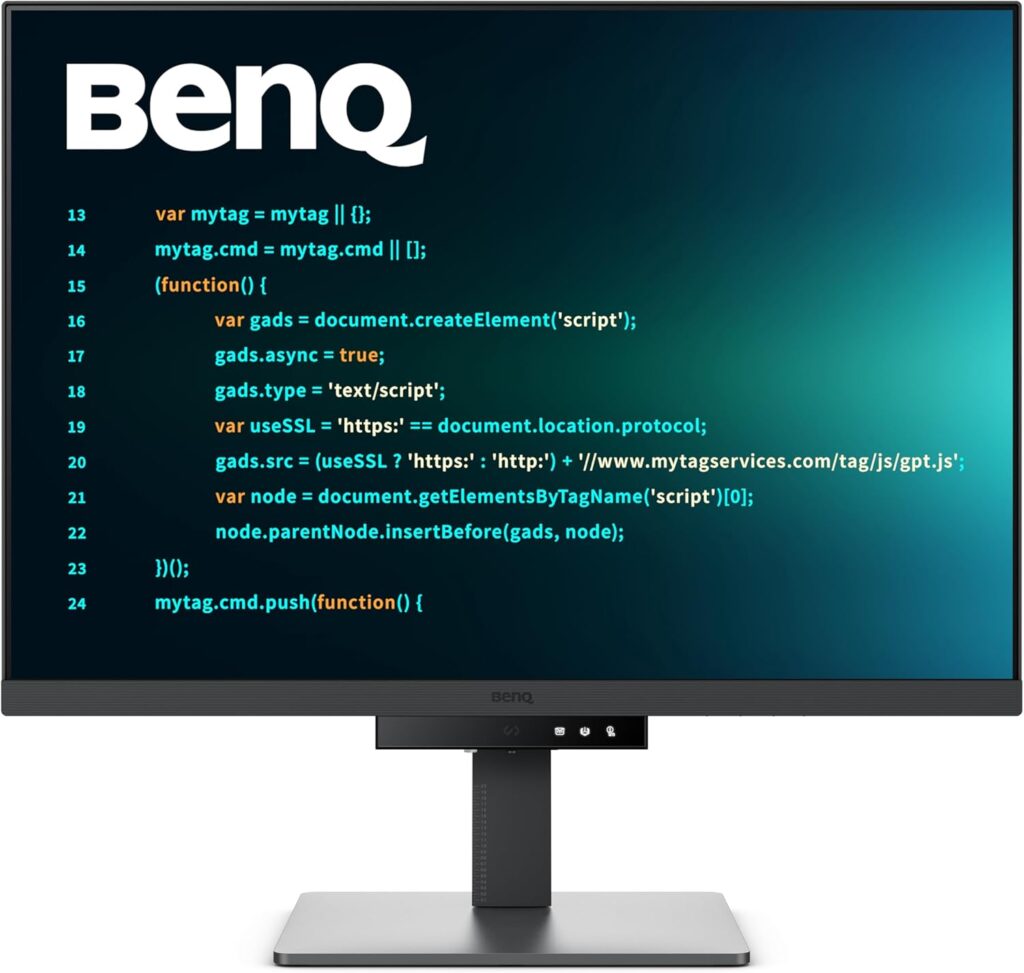
For programmers who crave vertical space
Tired of scrolling? This 3:2 aspect ratio monitor shows significantly more lines of code than standard 16:9 displays .
- Size: 28.2 inches
- Resolution: 4K (3840 x 2560) — taller than standard 4K
- Aspect Ratio: 3:2
- Panel: Nano Matte, 120Hz refresh rate
- Connectivity: USB-C 90W, HDMI, DisplayPort
- Features: 90-degree pivot for portrait mode
Why it’s great for programmers: The 3:2 aspect ratio is the star here—it’s essentially a 4K screen with extra vertical pixels . You’ll see 20-30% more lines of code without scrolling. The 120Hz refresh rate makes scrolling through long files feel butter-smooth . The Nano Matte coating eliminates glare, and 90W USB-C power delivery keeps your laptop charged. When pivoted to portrait mode (2:3), it’s perfect for reading documentation or viewing long files .
Watch out for: Premium pricing ($760); may feel tall if you’re used to widescreens.
Best for: Developers who work with long code files, documentation readers, and anyone wanting a unique, productivity-focused display.
👉 Check the latest price of the BenQ RD280UG on Amazon (affiliate link)
6. Best Color Accuracy: ASUS ProArt PA278CV
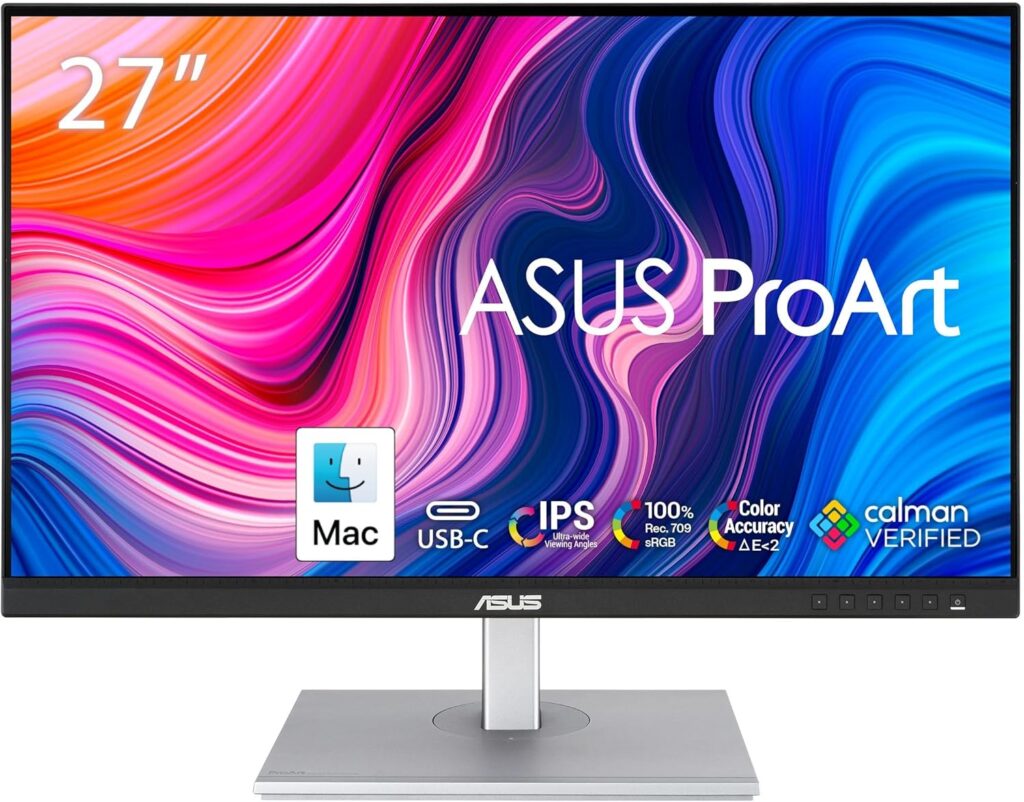
When color matters alongside code
If your work touches design, front-end development, or data visualization, color accuracy matters.
- Size: 27 inches
- Resolution: QHD (2560 x 1440)
- Panel: IPS, 75Hz
- Color Accuracy: 100% sRGB, 100% Rec.709, factory calibrated (ΔE < 2)
- Connectivity: USB-C 90W, HDMI, DisplayPort, Daisy-chain support
Why it’s great for programmers: Factory calibration means colors are accurate out of the box—no tweaking required. The 27-inch QHD combo hits the pixel density sweet spot (109 PPI) —sharp text without scaling headaches . USB-C with 90W powers your laptop, and daisy-chain support lets you connect a second monitor cleanly.
Watch out for: 75Hz refresh rate (fine for coding); ProArt features may be overkill if you never touch design work.
Best for: Front-end developers, data visualization specialists, and programmer-designers.
👉 Check the latest price of the ASUS ProArt PA278CV on Amazon (affiliate link)
7. Best Budget Dual Setup: Dell 24 Monitor – S2425H
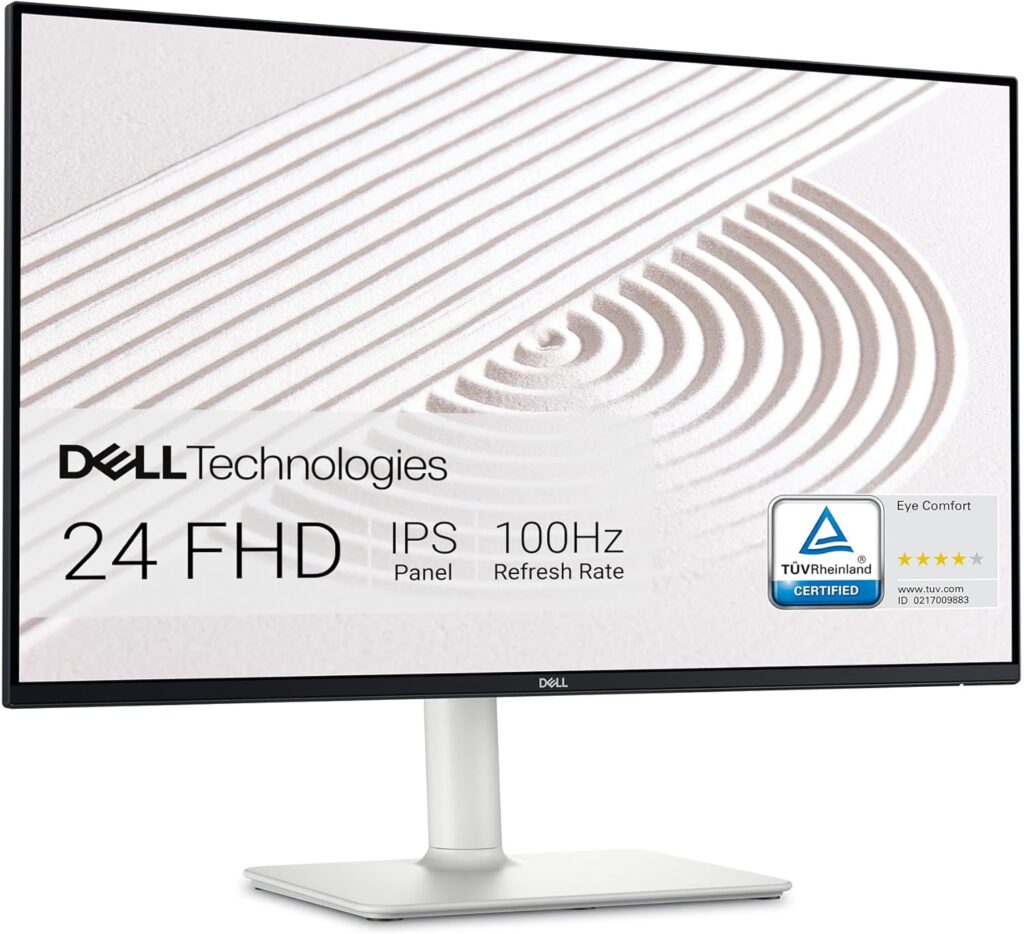
Perfect for students and secondary screens
When you need a second (or third) monitor without breaking the bank, this Dell delivers .
- Size: 24 inches
- Resolution: FHD (1920 x 1080)
- Panel: IPS, 75Hz
- Connectivity: HDMI, VGA
- Features: Built-in speakers, eye comfort technology, stylish design
Why it’s great for programmers: At just $135, it’s an affordable way to add screen real estate . The 24-inch size is ideal for a secondary monitor—perfect for documentation, Slack, or terminals. Built-in speakers save desk space, and the eye comfort features reduce strain during long study sessions .
Watch out for: 1080p resolution (fine for secondary use, not as sharp as 4K for primary). No USB-C.
Best for: Students on a budget, dual/triple monitor setups, secondary displays.
👉 Check the latest price of the Dell S2425H on Amazon (affiliate link)
Comparison Table: Specs at a Glance
| Monitor | Size | Resolution | Panel | Key Feature | Est. Price |
|---|---|---|---|---|---|
| BenQ RD320UA | 31.5″ | 4K | Nano Matte | Coding modes, MoonHalo, KVM | ~$700 |
| Dell U2725QE | 27″ | 4K | IPS Black | Thunderbolt 4, 3000:1 contrast | ~$750 |
| LG 34WN80C-B | 34″ | WQHD | Nano IPS | Ultrawide 21:9, 144Hz | ~$600-700 |
| Dell P2426D | 24″ | QHD | IPS | 90W USB-C, hardware cal | ~$300-350 |
| BenQ RD280UG | 28.2″ | 4K | Nano Matte | 3:2 aspect ratio, 120Hz | ~$760 |
| ASUS ProArt PA278CV | 27″ | QHD | IPS | Factory calibrated, 100% sRGB | ~$350 |
| Dell S2425H | 24″ | FHD | IPS | Budget-friendly, built-in speakers | ~$135 |
Dual Monitor vs. Ultrawide: Which is Better for Programming?
This is a classic debate among developers. Here’s how to decide :
Dual Monitor Setup
Pros:
- Can use two different monitors (e.g., one 4K primary + one budget secondary)
- If one monitor fails, you still have a screen
- Physical separation can help with task segregation
Cons:
- Bezel in the middle breaks continuity
- More cables, more desk space
- May require a monitor arm for ideal positioning
Ultrawide Monitor (34″ 21:9)
Pros:
- No bezel interruption—seamless workspace
- One cable, one stand, cleaner desk
- Perfect for side-by-side windows
Cons:
- If it breaks, you have no monitor
- Less flexible for different tasks
- May require window management software
Our take: If you can afford it, a 34″ ultrawide like the LG 34WN80C-B offers a cleaner, more immersive experience. But a dual 24″ or 27″ setup (like two Dell P2426Ds) is more flexible and often cheaper.
Programming Monitor Setup Ideas
The Student Setup (Under $300)
- Primary: Dell S2425H ($135)
- Secondary: Another Dell S2425H ($135)
- Total: $270 for a solid dual-monitor coding setup
The Professional Developer Setup (~$1,000)
- Primary: BenQ RD320UA ($700) or Dell U2725QE ($750)
- Secondary: Dell P2426D ($300) for documentation/terminals
- Total: $1,000-1,050 for a powerhouse dual setup
The Ultrawide Enthusiast (~$700)
- Single Monitor: LG 34WN80C-B ($600-700)
- Plus: Monitor arm for ergonomic positioning
- Total: ~$750 for a clean, bezel-free workspace
The Vertical Code Master (~$760)
- Single Monitor: BenQ RD280UG ($760)
- Perfect for: Developers who prioritize seeing more lines of code
Frequently Asked Questions
Is 4K worth it for programming?
Yes—if you get the right size. On a 27-32″ monitor, 4K provides sharp text and ample screen real estate . On a 24″ monitor, 4K requires scaling and may not be worth the premium .
24″ vs 27″ vs 32″ – which is best for coding?
- 24″: Great for dual setups and smaller desks. QHD resolution is ideal here .
- 27″: The sweet spot—works well with QHD or 4K .
- 32″: Maximum real estate for single-monitor setups. 4K is essential at this size .
Do I need a high refresh rate for programming?
No. 60Hz is perfectly fine for coding . However, 75-120Hz makes scrolling through code feel smoother, which some developers appreciate .
What about curved monitors for programming?
Curved monitors can be immersive, but they’re not necessary. For programming, a flat monitor is often preferred for accurate line perception .
Can I use a TV as a programming monitor?
Technically yes, but it’s not recommended. TVs have lower pixel density, higher input lag, and often lack accurate text rendering. Stick to purpose-built monitors.
How many monitors do programmers need?
Most developers are productive with two monitors—one for coding, one for documentation/output. Some prefer a single ultrawide. A few power users run three .
The Verdict: Which Monitor Should You Buy?
Choosing the right programming monitor comes down to your specific needs and budget:
- If you want the ultimate coding experience: Get the BenQ RD320UA. Its coding modes, MoonHalo backlight, and KVM switch are game-changers for daily developers .
- If you’re a Mac user or want premium connectivity: Get the Dell UltraSharp U2725QE. Thunderbolt 4 and IPS Black make it a joy to use .
- If you hate bezels and love multitasking: Get the LG 34WN80C-B ultrawide. The 21:9 aspect ratio transforms your workflow .
- If you’re a student on a budget: Get the Dell P2426D or a dual Dell S2425H setup. Professional features without the premium price .
- If you want to see more lines of code: Get the BenQ RD280UG. The 3:2 aspect ratio is a revelation for programmers .
- If front-end development is your focus: Get the ASUS ProArt PA278CV. Color accuracy matters when you’re implementing designs .